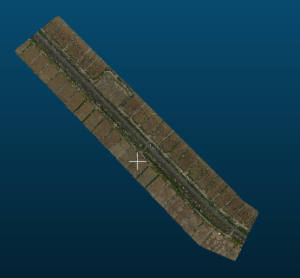
photoscanも結構豊富に作れて早いのだが、ここは細かな点群を調整する意味でcloudcompareを使う
これも手順が必要
まず、
メッシュ化に前に不要なデータを削除する
Edit >> Segment。
何かと言うとメッシュしたいところを切り出すって事。
photoscan also fast to it and make quite rich, but here use the cloudcompare in the sense to adjust the fine point cloud
This also requires a procedure
First,
Delete unnecessary data before meshing
Edit >> Segment.
What to say if that I cut out where you want to mesh.

以下のように、ツールが表示されるので、路線ポリラインがなければ、右から3つ目の多角形のポリゴンの選択でざっくり
選択して、次に、4つ目の多角形(中赤)赤が残されます。
幾度かチャレンジできるのでどうでもいいですが、終了後
右から7をクリックで、少々時間はかかるが、
Since the tool is displayed as follows, if there is no route polyline, it is roughly selected by selecting the polygon of the third polygon from the right
Choose, then, the four eyes of the polygon (medium-red) red is left.
Is good; do not because it several times challenge but, after the end of
By clicking 7 from the right, it takes a little time,


以下の様にセグメント化されます。
It is segmented as follows.
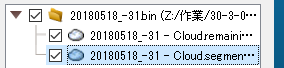
ここで保存してからセグメントだけを開けば不要なデータの消失や動作遅延が防げる。