「ソフト」タグアーカイブ

autocad:ObjectARX 2017ようやくコンバート完了

ObjectARX 2016で動作しなかったので、放置だったのを、昔に開発したシステムをどうしても使わなければならなくなり
仕方なくUPDATE 簡単じゃ無かったけど、解読するのに2時間ほどかかってしまった。
サンプルが、VB なんで C#のサンプル無し
C Sharp Plug-in のプラグイン導入するもエラー状態。
サードパーティ製で動作させたら応答なしの終了の連続。
どこまで不良品なんだって感じ。 ビルドしたものは、NETLOADで実行できるので、まーいいか

Autodesk_ObjectARX_2017_Win_64_and_32_Bitをダウンロード解凍後任意のフォルダへ
snapcrab_noname_2016-11-17_2-4-47_no-00
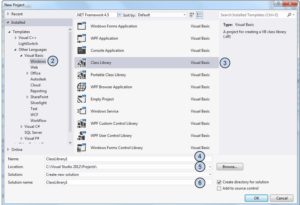
標準テンプレートを使用して新しいプロジェクトを作成するには
1.Microsoft Visual Studio で、[ファイル]メニュー [新規作成] [プロジェクト] (または[ファイル]メニュー [新しいプロジェクト])をクリックします。
2.[新しいプロジェクト]ダイアログ ボックスの[インストールされたテンプレート]ツリーで、[他の言語] [Visual C#]を展開し、[Windows]を選択します。
3.[テンプレート]の[クラス ライブラリ]を選択します。
4.[名前]ボックスに、新しいプロジェクトの名前を入力します。
5.[場所]ボックスに新しいプロジェクトの場所を入力するか、[参照]をクリックしてフォルダを選択します。
6.[ソリューション名]ボックスに、プロジェクトを追加する新しいソリューションの名前を入力します。
7.必要に応じて、[選択]ドロップ ダウンリストから[新しいソリューションを作成]、[ソリューションに追加]、[新しいインスタンスに作成]のいずれかを選択し、新しいプロジェクトを、現在開いているソリュー8.ションとどのような関係で作成するかを決定します。
9.サブフォルダを作成してから新しいソリューションとプロジェクトを作成するには、必要に応じて[ソリューション用のディレクトリを作成]チェック ボックスをオンにします。ソリューションとプロジェクトをソース管理データベースに追加するには、[ソース管理に追加]チェック ボックスをオンにします。
[OK]をクリックします。

プラグインは使わなくてもいい。
と言うか、全くうまく行かなかった。

Visual Studio 2015 では、4.5以上を採用
Visual Studio 2012 UP4 だと 4.5が使えるそうだが・・
snapcrab_noname_2016-11-17_2-16-23_no-00

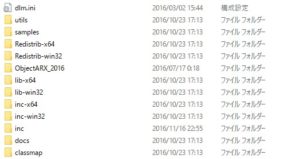
参照設定に、incのライブラリを全て
64ビットなのでinc-x64の必要なもの全て

クラスに
using System;
using Autodesk.AutoCAD.Runtime;
using Autodesk.AutoCAD.DatabaseServices;
using Autodesk.AutoCAD.Geometry;
using Autodesk.AutoCAD.EditorInput;

using Autodesk.AutoCAD.Interop;
using Autodesk.AutoCAD.Colors;
using Autodesk.AutoCAD.Windows;
using System.Collections.Generic;
using System.Diagnostics;
using Autodesk.AutoCAD.GraphicsInterface;
using System.IO;
using System.Text;
using System.Collections;
using System.Reflection;
using Autodesk.Windows;
using Autodesk.AutoCAD.ApplicationServices;

//これが必要
[assembly: CommandClass(typeof(test.MyCommands))]

namespace test
{

public class MyCommands
{
//実行コマンド
[CommandMethod(“NCR”)]

後は、起動してNETLOAD で実行可能。

デバックは、サードパーティで購入していたので、全く動作しない。停止する。
メディアプレイヤーの検討!

昔は、良かったGOM Player 韓国!
In the past, it was good “GOM Player” Korea!
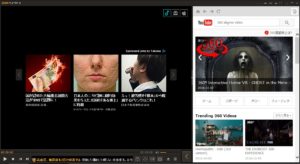
今じゃ広告が起動時に必ず表示されて面倒な状態
Cumbersome state advertising’m now is always displayed at the time of start-up
これが画面!
This is the screen!
20161003_094242_-00
数度ならいざ知らず本当に迷惑状態になったので、簡単に視聴できてキャプチャできれば条件で結局元にもどりました。
It became so really annoying state without knowing emergency if a few degrees, was to return to eventually source on the condition if possible capture can watch easily.
昔、VLCは簡単で良かったが、キャプチャと視聴があまり便利でなかったので視聴サイズに全画面になることがちょっとだったけど
今では、この点を調べて
Once upon a time, “VLC” but was good and easy, but “capture” and “viewing” was a little be a full-screen viewing size so was not very useful
Now, check this point
VLCメディアプレイヤーの画面のサイズをどうやって好きなサイズで固定するか?
How to fix in a size you like doing the size of the screen of the “VLC media player”?
メニューバーの、ツール > Preferences > (左側)インターフェース
で、ウィンドウ右側の「インターフェース設定」の真ん中あたりの、
Resize interface to video size
もしくは日本語 ルックアンドフィール>ビデオのサイズにインターフェースをリサイズ
のチェックをはずす
保存→VLCを再起動
で可能となり、おお!て感じ。
全く広告も無いので
続きを読む メディアプレイヤーの検討!

日本中の鉄道網!見やすく追求はこれ

乗換案内サービス、ま何処にでもあるよね!と思っていた。
Transit service, or you think there is anywhere! And I thought.
今やどこでも出てくるgoogole Map
Now everywhere come out “google Map”
結構、どこかに行きたいは苦難の道!
Fine, the road of hardship want to go somewhere!
それがこれで見やすくなるようだね。
It is it’s so easy to see in this.

13_s

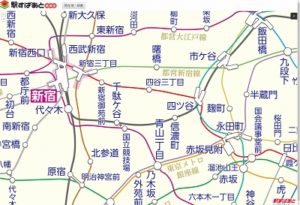
「駅すぱあと」と株式会社ヴァル研究所が、全国の鉄道路線図API「駅すぱあと路線図」を提供開始。
“Eki supato” and “Corporation Val Institute” is, provide start the railway route map API “station spa after route map” of the country.
同APIで使用される鉄道路線図は、日本全国すべての鉄道路線と駅をシームレスな1枚の図で表現したもので、拡大・縮小やスクロールが可能。
Railway route map to be used in the same API is, the Japan all of the railway lines and stations a representation of a seamless one figure, capable of scaling and scrolling.

http://rosenzu.strikingly.com/

駅すぱあと路線図API