「3dプリンター」カテゴリーアーカイブ

blender、ender3d pro

Blender:台所の籠用フックを作成1

至る所に妻のアイデア満載
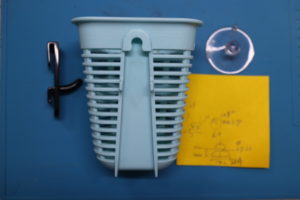
メッシュ用籠
IMG_3285
Full of wife’s ideas everywhere
Basket for mesh

土台は、すでに出来ているのであとは接続部分のモデリング
IMG_3284
The foundation is already made and modeling the connection

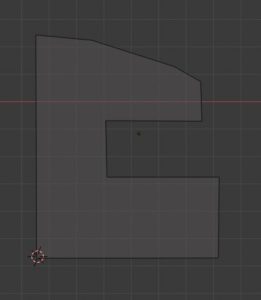
他の製品でも使えるように汎用性を付け加えて
SnapCrab_NoName_2020-1-8_13-48-15_No-00
Add versatility to use with other products

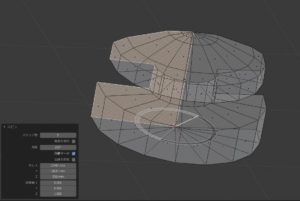
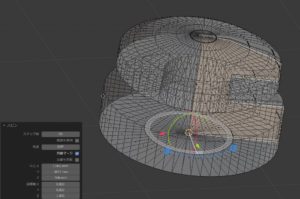
サクッと同様な作りでメッシュを作成
今度は押し出しを使わす回転体で作成
このようにしてから、
ツールを使うのでカーソルを設置する。
編集モード
回転させるオブジェクトを選択
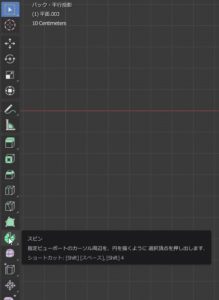
スピン
を選択
SnapCrab_NoName_2020-1-8_13-56-55_No-00
Create mesh in the same way as crispy
Now created with a rotating body using extrusion
After doing this,
Set the cursor because the tool is used.
Edit mode
Select objects to rotate
spin
choose

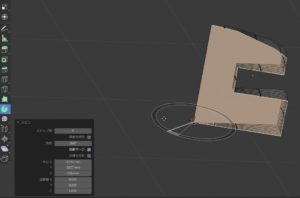
視点かえて
SnapCrab_NoName_2020-1-8_13-58-6_No-00
Change perspective

ステップ数だけ変更
SnapCrab_NoName_2020-1-8_13-58-11_No-00
Change only the number of steps

いい感じ
SnapCrab_NoName_2020-1-8_13-58-50_No-00
Good vibes

完成
SnapCrab_NoName_2020-1-8_14-13-37_No-00
Complete

Blender:選択で裏も選択する方法

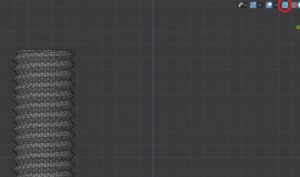
選択で裏面も選択したい場合がほとんど
(^^>
その方法 昔の、Limit Selection
今は、アイコンを覚えるか ALT+Z
とりあえず、結局はアイコン覚えたほうが良いので
見ればわかるって事
クリック前は、裏面の頂点見えず
SnapCrab_NoName_2020-1-8_12-40-50_No-00
In most cases you want to select the back side as well
(^^>
The old way, Limit Selection
Now, remember the icon or ALT + Z
For the time being, it’s better to remember the icons
You can see if you look
Before clicking, the top of the back is not visible

クリック後は、裏面の頂点が見えている。
SnapCrab_NoName_2020-1-8_12-40-54_No-00
After clicking, the vertex on the back is visible.

後は、どちらかの表示で選択すればOK
After that, if you select in either display OK

Blender:ナイフ(切断)の方法

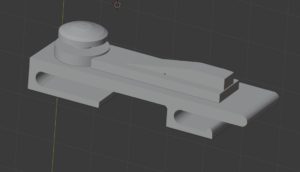
モジュールESPで操作OLEDでの画面の大きさに少々不満で
ならという事でスマートホンホルダーを制作
通常でWIFI サーバ起動するのでこれで操作できれば簡単かと
そこで昔作成したデータをナイフで削除して合成しようと

Operation with module ESP I was a little dissatisfied with the screen size on OLED
Produce a smart phone holder
Normally the WIFI server starts, so if it can be operated with this, it will be easy
So I tried to combine the data created in the past with a knife

まずオブジェクトを選択
SnapCrab_NoName_2020-1-8_11-53-17_No-00
First select the object

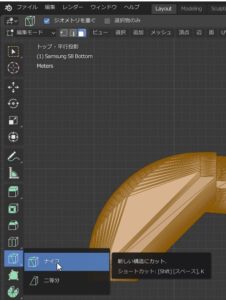
編集モード
ナイフ
SnapCrab_NoName_2020-1-8_11-54-4_No-00
Edit mode
knife

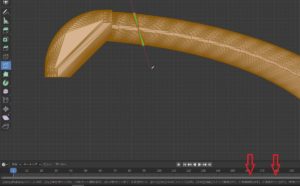
初めの点を選択
切る方向線が出るので
SnapCrab_NoName_2020-1-8_11-54-11_No-00
Select first point
Since the cutting direction line comes out

ここで
C
を押すと角度に制限を実施
Z
を押すと裏まで透過させるて切る

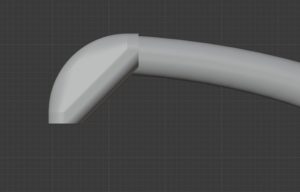
線を動かすと切る位置が明確に表示され
SnapCrab_NoName_2020-1-8_11-55-21_No-00

here
C
Press to limit the angle
Z
Press to cut through to the back

Moving the line clearly shows where to cut

最後に
左クリックで状態確認
スペースで確定。
向かって左が、ZをOFF 右が ZをON
ほとんどの場合は、ZをONだけど複雑なモデリングだと表面を回転しながら切るときには便利。

Finally
Left click to check status
Confirm with space.
The left side turns off Z, the right turns on Z
In most cases, Z is ON but complex modeling is useful when cutting while rotating the surface.