
とりあえずDLAN環境と整える為Mysqlを導入。
yum -y install mysql-server
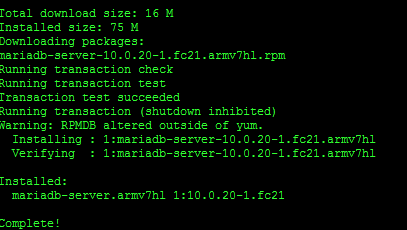
systemctl start mysqld.service

全く問題ないですね。さすが、パッケージ。
ていうか忘れてた。
Mysqlは、買収されて確かライセンスが変更されたようで
mysql.sql
と
sqlite3.sql
があったー。
そのため2つあるんだろな。とりあえず、postgresとともになじみのあるsqlite
だね。
sqlite3の方がメジャーだった。
yum serch sqllite
ん?
反応なし?
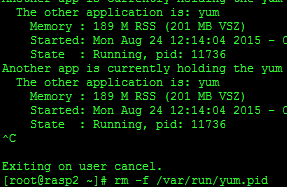
おっと、未だに探していた。
さすがに時間で言うと3日位動いているっていうか、それでいてこの動作はなに?
全く熱くないし安定している。
とりあえず
rm -f /var/run/yum.pid
でプロセスごと削除。
yum check
問題ないですね。
sqlliteへ変更
入っていました。
Package sqlite-3.8.10.2-1.fc21.armv7hl already installed and latest version
SSHの管理よりも簡便なwebで管理しようと試みた。
何か別な路線に行きそう。
とりあえず、足跡でいれたパッケージは後日消すとして
sqlitebrowser.armv7hl : Create, design, and edit SQLite database files
Name and summary matches only, use “search all” for everything.
ありました。さすがはFedora あるんだよね必ず。
この点はredhatさまさま。
yum install sqlitebrowser
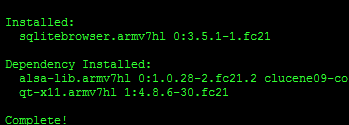
おっとこれは、GUI editor for SQLite databasesでした。
サーバとしては利用できない。
削除予定
yum remove sqlitebrowser
yum install mediatomb
すると mediatomb, js, libexif, taglib がインストールされます
ファイルサーバの準備
yum -y install samba
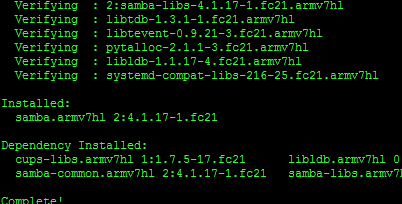
何故 sambaを入れたか、それは初期化ファイルの編集に viは非常に多くの時間を割くからでした。
sshも良いが、非常に行数が多いので手っ取り早い。
windowsサーバのように、実行prgが古い仕様のまま稼働させるようなことは無く、その都度コンパイル
していくようなファイルサーバパッケージなので高速な上に安定しています。
会社でもファイルサーバはlinuxで作りましたが、Dellのwindowsサーバより、安定していて安い。
windowsは掛けた金額によって安定度をあげるが、このファイルサーバは、オープンソースなので
無償、無保証ですが全く持って信頼されてます。
windowsサーバは、6万ものファイルを一度にコピーすると必ず失敗するか中身のファイルをロックするか、壊します。
linuxは失敗するどころか終了まで永遠と止まりません。
壊すことも、止まるとこもありませんから、安心。
DLANの設定
sambaに設定 /etcを設定それ以外は負担となるので設定なし。
編集時にだけ稼働させる。
/etc/mediatomb.conf を編集します
(MediaTombで使用するネットワークインターフェイスを指定)。
sambaで探せばありました但し、直接編集はしない事。
レスポンスが悪いのでファイルを失うどころか故障をまねかねないのでコピーして編集
上書きがベスト。
.confと付くものは、サービス時運用のコンパイル時にインクルードファイルなので問題ない。
ifconfig
で
eth0
l0
wlan0
なので
## Network interface on which the server will run, you need to edit this!
MT_INTERFACE=”NOT_SET”
を
MT_INTERFACE=”eth0″とする。
次に、sshで
systemctl start mediatomb.service
稼働しなければ
## Location of the log file
MT_LOGFILE=”/var/log/mediatomb”
とあるので
ログを確認
2015-08-25 09:36:11 INFO: MediaTomb configuration was created in: /etc/mediatomb/config.xml
2015-08-25 09:36:11 INFO: Loading configuration from: /etc/mediatomb/config.xml
2015-08-25 09:36:11 INFO: Checking configuration…
2015-08-25 09:36:11 INFO: Setting filesystem import charset to UTF-8
2015-08-25 09:36:11 INFO: Setting metadata import charset to UTF-8
2015-08-25 09:36:11 INFO: Setting playlist charset to UTF-8
2015-08-25 09:36:11 WARNING: You enabled the YouTube feature, which allows you
to watch YouTube videos on your UPnP device!
Please check http://www.youtube.com/t/terms
By using this feature you may be violating YouTube
service terms and conditions!
おめでとうyoutube機能も有効にできるよってさ。
2015-08-25 09:36:11 INFO: Configuration check succeeded.
2015-08-25 09:36:11 WARNING: Sqlite3 database seems to be corrupt or doesnt exist yet.
2015-08-25 09:36:11 INFO: no sqlite3 backup is available or backup is corrupt. automatically creating database…
2015-08-25 09:36:11 INFO: database created successfully.
2015-08-25 09:36:11 INFO: Initialized port: 50500
2015-08-25 09:36:11 INFO: Server bound to: *.*.*.*
2015-08-25 09:36:12 INFO: MediaTomb Web UI can be reached by following this link:
2015-08-25 09:36:12 INFO: http://*.*.*.*:50500/
動作しましたね。
次に
mp4, divx のメディアタイプを /etc/mediatomb/config.xml に追加・変更。
動作するとこのファイルが/etc/mediatombに現れる。
このxmlでコンパイルされるのでこれも同様に変更する。
バックアップが必要なのと基本的にUTF8のediterを利用した方がいいね。
xmlの中身
<?xml version=”1.0″ encoding=”UTF-8″?>
<config version=”2″ xmlns=”http://mediatomb.cc/config/2″ xmlns:xsi=”http://www.w3.org/2001/XMLSchema-instance” xsi:schemaLocation=”http://mediatomb.cc/config/2 http://mediatomb.cc/config/2.xsd”>
<server>
<ui enabled=”yes” show-tooltips=”yes”>
<accounts enabled=”no” session-timeout=”30″>
<account user=”mediatomb” password=”mediatomb”/>デフォルトなので後で変更
</accounts>
</ui>
<name>MediaTomb</name>
<udn>uuid: </udn>
<home>/etc/mediatomb</home>
<webroot>/usr/share/mediatomb/web</webroot>
<storage>
<sqlite3 enabled=”yes”>
<database-file>mediatomb.db</database-file>
</sqlite3>
<mysql enabled=”no”>
<host>localhost</host>
<username>mediatomb</username>
<database>mediatomb</database>
</mysql>
</storage>
<protocolInfo extend=”no”/><!– For PS3 support change to “yes” –>
<!–
Uncomment the lines below to get rid of jerky avi playback on the
DSM320 or to enable subtitles support on the DSM units
–>
<!–
<custom-http-headers>
<add header=”X-User-Agent: redsonic”/>
</custom-http-headers>
<manufacturerURL>redsonic.com</manufacturerURL>
<modelNumber>105</modelNumber>
–>
<!– Uncomment the line below if you have a Telegent TG100 –>
<!–
<upnp-string-limit>101</upnp-string-limit>
–>
<extended-runtime-options>
<mark-played-items enabled=”no” suppress-cds-updates=”yes”>
<string mode=”prepend”>*</string>
<mark>
<content>video</content>
</mark>
</mark-played-items>
<lastfm enabled=”no”>
<username>lastfmuser</username>
<password>lastfmpass</password>
</lastfm>
</extended-runtime-options>
</server>
<import hidden-files=”no”>
<scripting script-charset=”UTF-8″>
<common-script>/usr/share/mediatomb/js/common.js</common-script>
<playlist-script>/usr/share/mediatomb/js/playlists.js</playlist-script>
<virtual-layout type=”builtin”>
<import-script>/usr/share/mediatomb/js/import.js</import-script>
</virtual-layout>
</scripting>
<mappings>
<extension-mimetype ignore-unknown=”no”>
<map from=”mp3″ to=”audio/mpeg”/>
<map from=”ogx” to=”application/ogg”/>
<map from=”ogv” to=”video/ogg”/>
<map from=”oga” to=”audio/ogg”/>
<map from=”ogg” to=”audio/ogg”/>
<map from=”ogm” to=”video/ogg”/>
<map from=”asf” to=”video/x-ms-asf”/>
<map from=”asx” to=”video/x-ms-asf”/>
<map from=”wma” to=”audio/x-ms-wma”/>
<map from=”wax” to=”audio/x-ms-wax”/>
<map from=”wmv” to=”video/x-ms-wmv”/>
<map from=”wvx” to=”video/x-ms-wvx”/>
<map from=”wm” to=”video/x-ms-wm”/>
<map from=”wmx” to=”video/x-ms-wmx”/>
<map from=”m3u” to=”audio/x-mpegurl”/>
<map from=”pls” to=”audio/x-scpls”/>
<map from=”flv” to=”video/x-flv”/>
<map from=”mkv” to=”video/x-matroska”/>
<map from=”mka” to=”audio/x-matroska”/>
<!– Uncomment the line below for PS3 divx support –>
<!– <map from=”avi” to=”video/divx”/> –>
<!– Uncomment the line below for D-Link DSM / ZyXEL DMA-1000 –>
<!– <map from=”avi” to=”video/avi”/> –>
</extension-mimetype>
<mimetype-upnpclass>
<map from=”audio/*” to=”object.item.audioItem.musicTrack”/>
<map from=”video/*” to=”object.item.videoItem”/>
<map from=”image/*” to=”object.item.imageItem”/>
</mimetype-upnpclass>
<mimetype-contenttype>
<treat mimetype=”audio/mpeg” as=”mp3″/>
<treat mimetype=”application/ogg” as=”ogg”/>
<treat mimetype=”audio/ogg” as=”ogg”/>
<treat mimetype=”audio/x-flac” as=”flac”/>
<treat mimetype=”audio/x-ms-wma” as=”wma”/>
<treat mimetype=”audio/x-wavpack” as=”wv”/>
<treat mimetype=”image/jpeg” as=”jpg”/>
<treat mimetype=”audio/x-mpegurl” as=”playlist”/>
<treat mimetype=”audio/x-scpls” as=”playlist”/>
<treat mimetype=”audio/x-wav” as=”pcm”/>
<treat mimetype=”audio/L16″ as=”pcm”/>
<treat mimetype=”video/x-msvideo” as=”avi”/>
<treat mimetype=”video/mp4″ as=”mp4″/>
<treat mimetype=”audio/mp4″ as=”mp4″/>
<treat mimetype=”application/x-iso9660″ as=”dvd”/>
<treat mimetype=”application/x-iso9660-image” as=”dvd”/>
</mimetype-contenttype>
</mappings>
<online-content>
<YouTube enabled=”no” refresh=”28800″ update-at-start=”no” purge-after=”604800″ racy-content=”exclude” format=”mp4″ hd=”no”>
<favorites user=”mediatomb”/>
<standardfeed feed=”most_viewed” time-range=”today”/>
<playlists user=”mediatomb”/>
<uploads user=”mediatomb”/>
<standardfeed feed=”recently_featured” time-range=”today”/>
</YouTube>
</online-content>
</import>
<transcoding enabled=”no”>
<mimetype-profile-mappings>
<transcode mimetype=”video/x-flv” using=”vlcmpeg”/>
<transcode mimetype=”application/ogg” using=”vlcmpeg”/>
<transcode mimetype=”application/ogg” using=”oggflac2raw”/>
<transcode mimetype=”audio/x-flac” using=”oggflac2raw”/>
</mimetype-profile-mappings>
<profiles>
<profile name=”oggflac2raw” enabled=”no” type=”external”>
<mimetype>audio/L16</mimetype>
<accept-url>no</accept-url>
<first-resource>yes</first-resource>
<accept-ogg-theora>no</accept-ogg-theora>
<agent command=”ogg123″ arguments=”-d raw -o byteorder:big -f %out %in”/>
<buffer size=”1048576″ chunk-size=”131072″ fill-size=”262144″/>
</profile>
<profile name=”vlcmpeg” enabled=”no” type=”external”>
<mimetype>video/mpeg</mimetype>
<accept-url>yes</accept-url>
<first-resource>yes</first-resource>
<accept-ogg-theora>yes</accept-ogg-theora>
<agent command=”vlc” arguments=”-I dummy %in –sout #transcode{venc=ffmpeg,vcodec=mp2v,vb=4096,fps=25,aenc=ffmpeg,acodec=mpga,ab=192,samplerate=44100,channels=2}:standard{access=file,mux=ps,dst=%out} vlc:quit”/>
<buffer size=”14400000″ chunk-size=”512000″ fill-size=”120000″/>
</profile>
</profiles>
</transcoding>
</config>
このパッケージも分かっているようでmysqlは通常で使えなくなっている。
判断は正しかった。
<protocolInfo extend=”yes”/><!– For PS3 support change to “yes” –>
に変更
<extension-mimetype ignore-unknown=”no”>
<map from=”mp3″ to=”audio/mpeg”/>
<map from=”mp4″ to=”video/mp4″/>
を追加
<!– <map from=”avi” to=”video/divx”/> –>
を
<map from=”avi” to=”video/divx”/>
に変更
また上書きして再起動
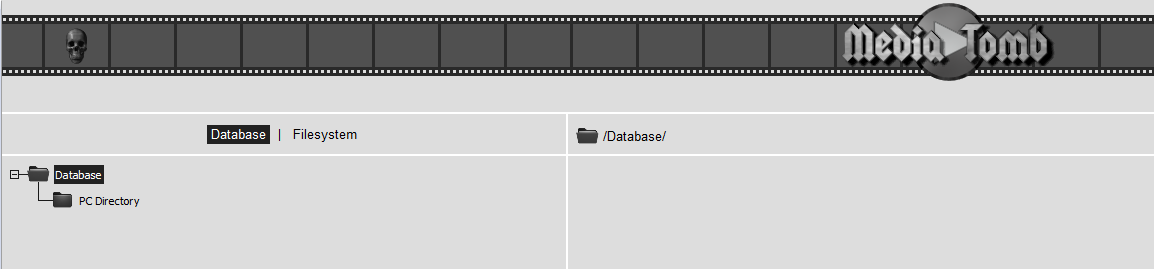
動作完了ですね。
sambaも入れているので非常に簡単ですが、たくさんのファイルを送るには
FTPを使った方がいいですね。
そんなに大きなファイルを送る場合は、パケットが安定して送る必要があるとFTPの
パッシブ機能が重要ですよねきっと。
sambaはファイルの共有が目的でFTPはファイルの送受信が目的です。
mysqlは削除
yum remove mysql
完成!
追記
どうもFTPだと文字化けがするようですのでその場合の対策
<import hidden-files=”no”>
<filesystem-charset>UTF-8</filesystem-charset>
<metadata-charset>CP932</metadata-charset>
<scripting script-charset=”UTF-8″>
<common-script>/usr/share/mediatomb/js/common.js</common-script>
<playlist-script>/usr/share/mediatomb/js/playlists.js</playlist-script>
<virtual-layout type=”builtin”>
<import-script>/usr/share/mediatomb/js/import.js</import-script>
</virtual-layout>
このようにxmlを変更してやればよろしいみたいです。
とりあえず完了。
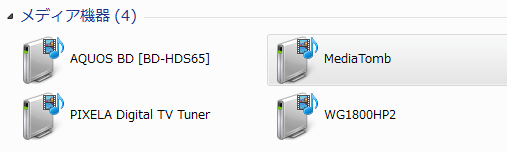
とりあえず見れますね
転送環境の準備
yum -y install vsftpd
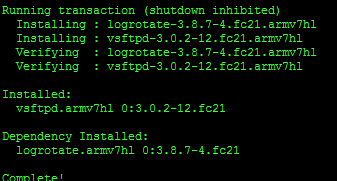
設定
/etc/vsftpd/vsftpd.conf
anonymous_enable=NO
xferlog_file=/var/log/xferlog
xferlog_std_format=NO
chroot_local_user=YES
chroot_list_enable=YES
chroot_list_file=/etc/vsftpd/chroot_list
ls_recurse_enable=YES
use_localtime=YES
pasv_addr_resolve=YES
pasv_address=*.*.*.* DDNSを使っていればそのホスト
pasv_min_port=60000
pasv_max_port=60030
ssl_enable=YES
rsa_cert_file=/etc/pki/tls/certs/vsftpd.pem これは無いので作成する。
require_ssl_reuse=NO
force_local_logins_ssl=NO
force_local_data_ssl=NO
サーバー証明書作成
/etc/pki/tls/certs/vsftpd.pem
cd /etc/pki/tls/certs/
make vsftpd.pem
Country Name (2 letter code) [GB]:JP ← 国名応答
State or Province Name (full name) [Berkshire]:Tokyo ← 都道府県名応答
Locality Name (eg, city) [Newbury]:Shinjuku ← 市区町村名応答
Organization Name (eg, company) [My Company Ltd]:fedorasrv.com ← サイト名応答(なんでもいい)
Organizational Unit Name (eg, section) []: ← 空ENTER
Common Name (eg, your name or your servers hostname) []:ftp.fedorasrv.com ← ホスト名応答
Email Address []:root@fedorasrv.com ← 管理者メールアドレス応答
cd カレントに戻る
systemctl start vsftpd.service サービス開始
systemctl status vsftpd.service とりあえず確認

大事になってきたがとりあえず完了
とりあえず自分が通常使用のFTP Filezilla

完成
転送??? あ (゜_゜>) 高速です。
2mbのmp4a 2個転送 1秒かかりません。
WG1800のは、ecoモードから復帰転送するまで 10秒ぐらいかかるかな?
恐るべしRaspberry Pi 2 model B
数台ほしくなった。
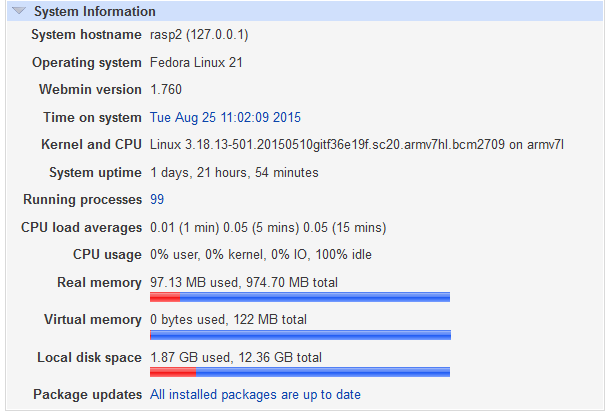
この状態。
ありえん! ヒートシンクは常温に近い。
あっけなく完成。

問題ないけど複数表示される。 まいいか
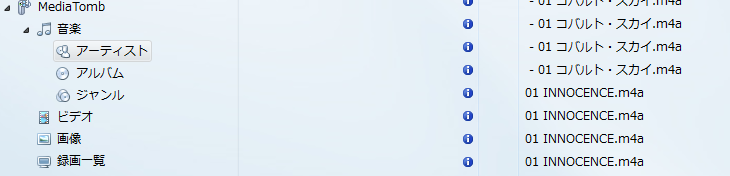
PCはOK WIn8のタブでもOK
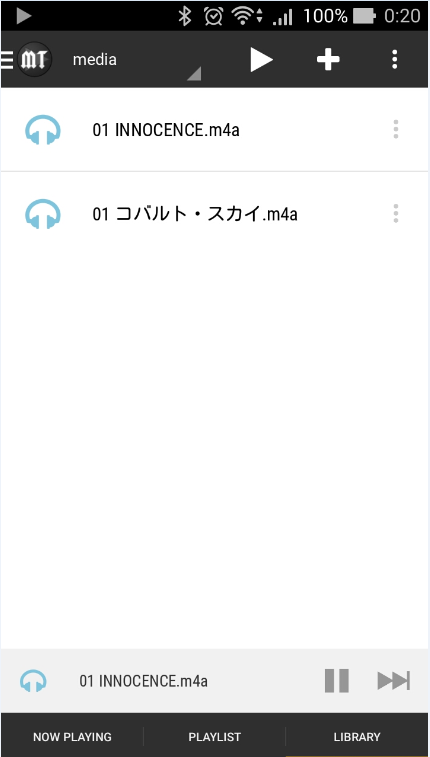
スマートホンOK
iphone,ipadもOK
んーそうなるとぜひともwlan0を良いものにするか!
海外でraspberry pi2 のwifiユニット安いんだよねー USBより、変換しない分安定度は抜群だか、技適を考えるとグレーかな。
ま時間と予算がある限りしますか